Installing on Android
Your phone will show one or two warnings while you install AncientX. That's normal for every app that doesn't come from the Play Store, and it takes about two minutes. This page shows each screen and which button to tap.
Why does my phone warn me?
Android is careful with any app that doesn't come from the Google Play Store. When you install an app from a website (this is called sideloading), Android asks you to confirm it first. It shows these warnings for every app from outside the Play Store, not just AncientX. They mean "Android hasn't checked where this came from", not "this app is dangerous".
AncientX isn't on the Play Store yet because the Android app is still an early beta. A Play Store version is planned, and then you won't see any of these screens.
The short version:
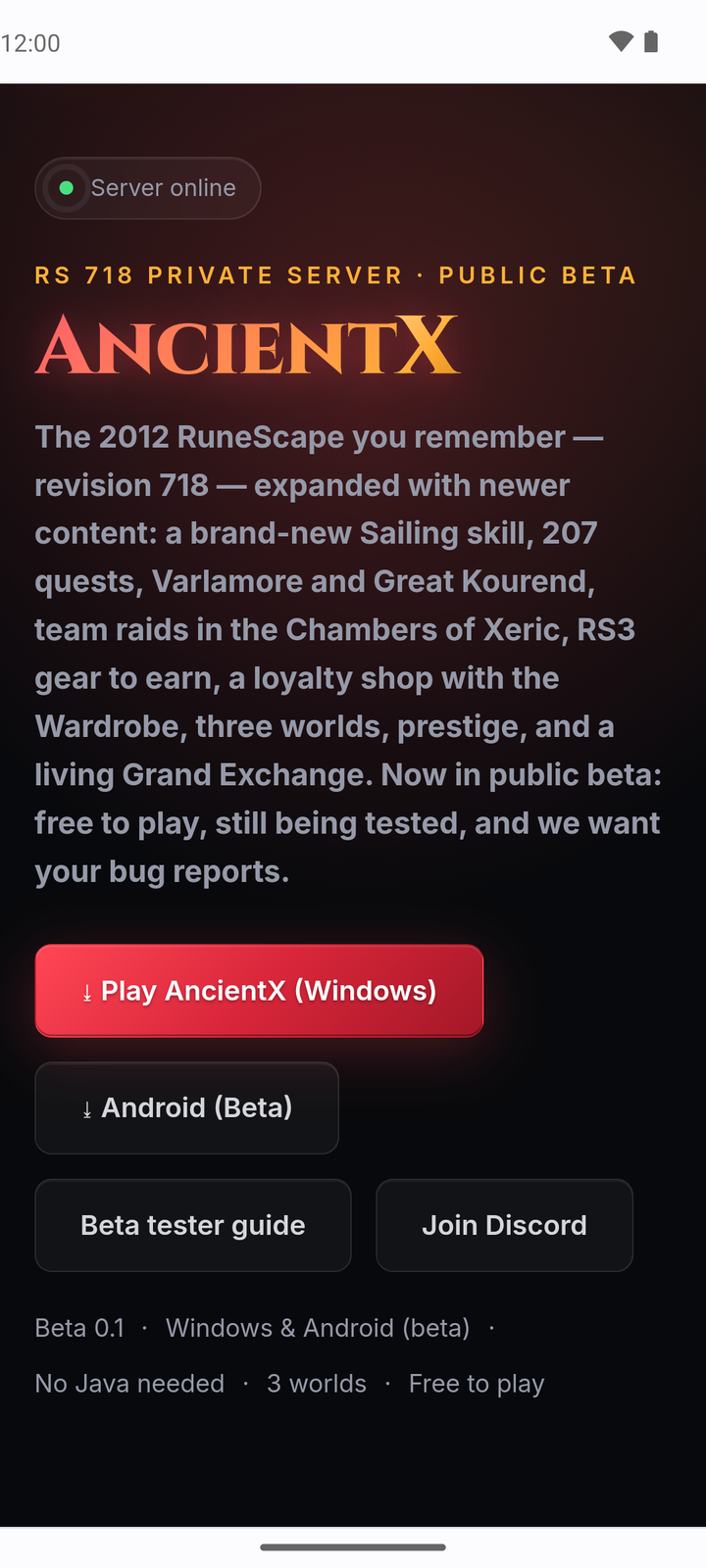
- On your phone, log in at ancientx.net (your free forum account), then tap Android (Beta).
- If Chrome says File might be harmful, tap Download anyway. When it's done, tap Open.
- When Android says it can't install unknown apps from this source, tap Settings and turn on Allow from this source.
- Tap Install. If Play Protect offers a scan, tap Scan app.
- Tap Open, then Got it, then Download game data, and log in. Afterwards, turn Allow from this source back off.
Only install AncientX from ancientx.net. Never install a copy someone sends you in a DM or file share. The screenshots below come from Android 14 with the Chrome browser. Other phones and browsers use slightly different words and colours, but the steps are the same.
Log in, then tap Android (Beta)
The download is for registered players, so log in on your phone first. Open ancientx.net in your phone's browser, go to Forums and log in with your AncientX account. It's free. No account yet? Register here. This is the same account you play with.
Then go back to the home page and tap Android (Beta).
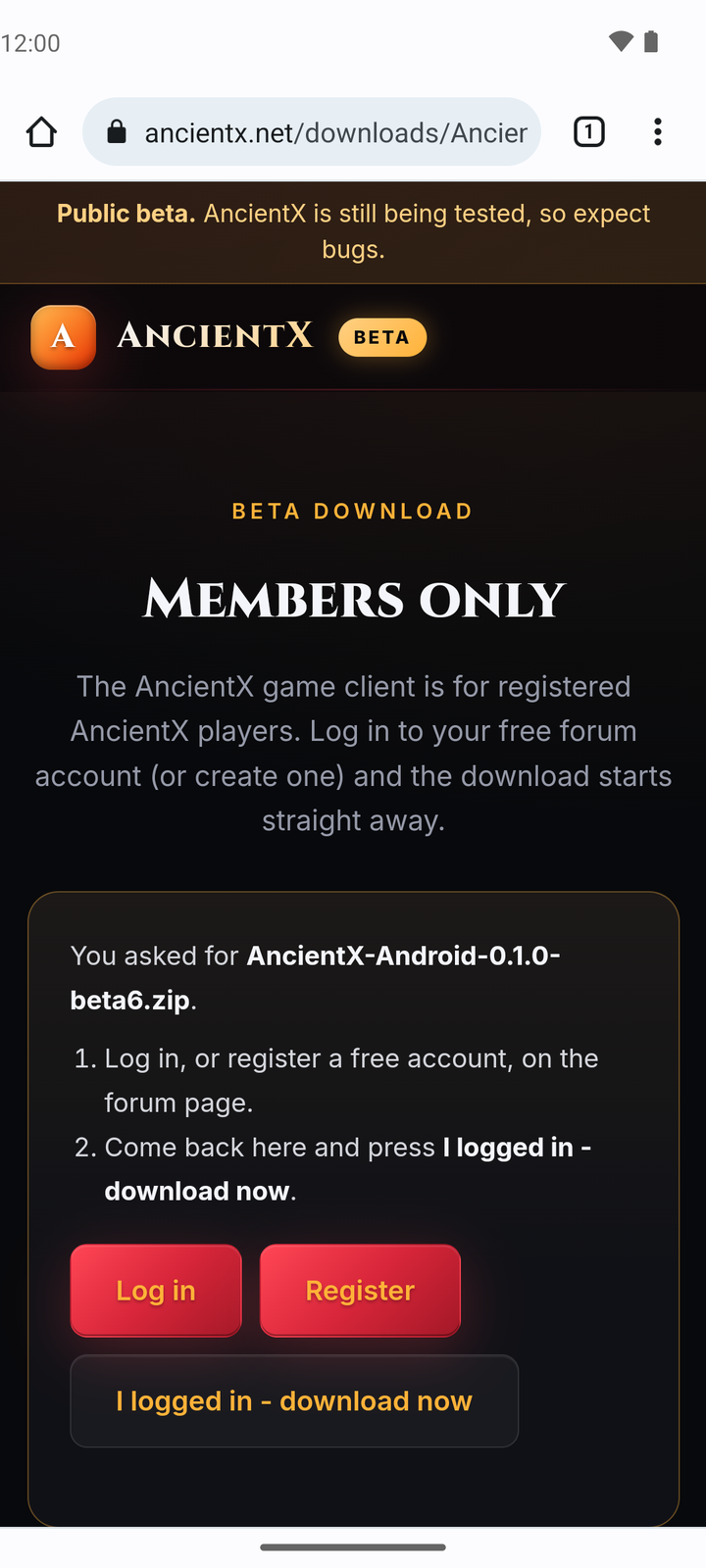
If you weren't logged in, you'll see a Members only page instead of a download. Tap Log in (or Register), log in, come back to that page and tap I logged in - download now.
Why? The game client is only for registered AncientX players. Being logged in on the website is what lets the download start.
.apk.)Download the app
You get one small file called AncientX-Android-….apk (about 1.3 MB). That's the app itself, so there's nothing to unzip.
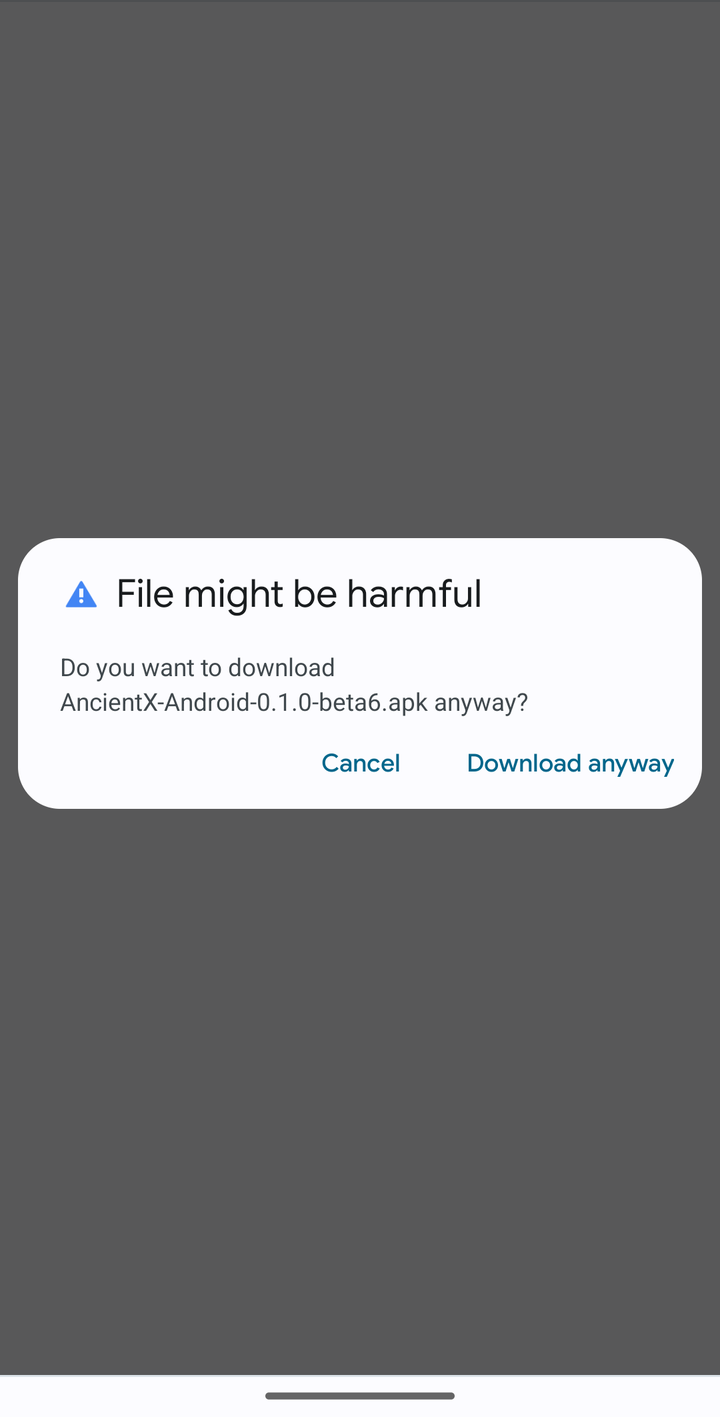
- Chrome asks "File might be harmful. Do you want to download AncientX-Android-0.1.0-beta13.apk anyway?" Tap Download anyway. (The very first time you download something, Chrome may also ask where to save it. Tap Download.)
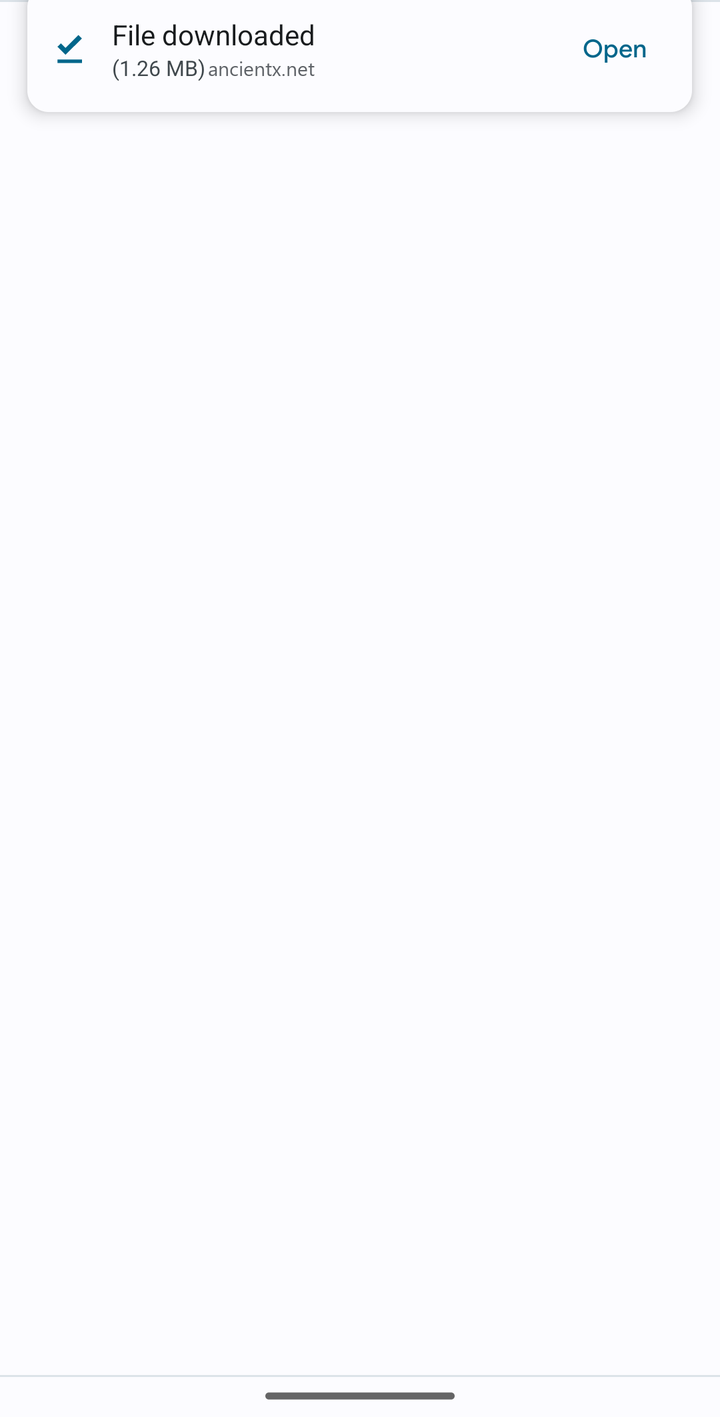
- When it's finished, Chrome shows File downloaded at the top of the screen. Tap Open.
Missed the Open button? Open your Files app, go to Downloads and tap the .apk. Using Samsung Internet, Firefox or another browser? The words are a little different, but it's the same idea: confirm the download, then open the file.
Why? Chrome says this about every app file from every website, because it can't check apps from outside the Play Store. It doesn't mean it found anything wrong.
Allow this one install
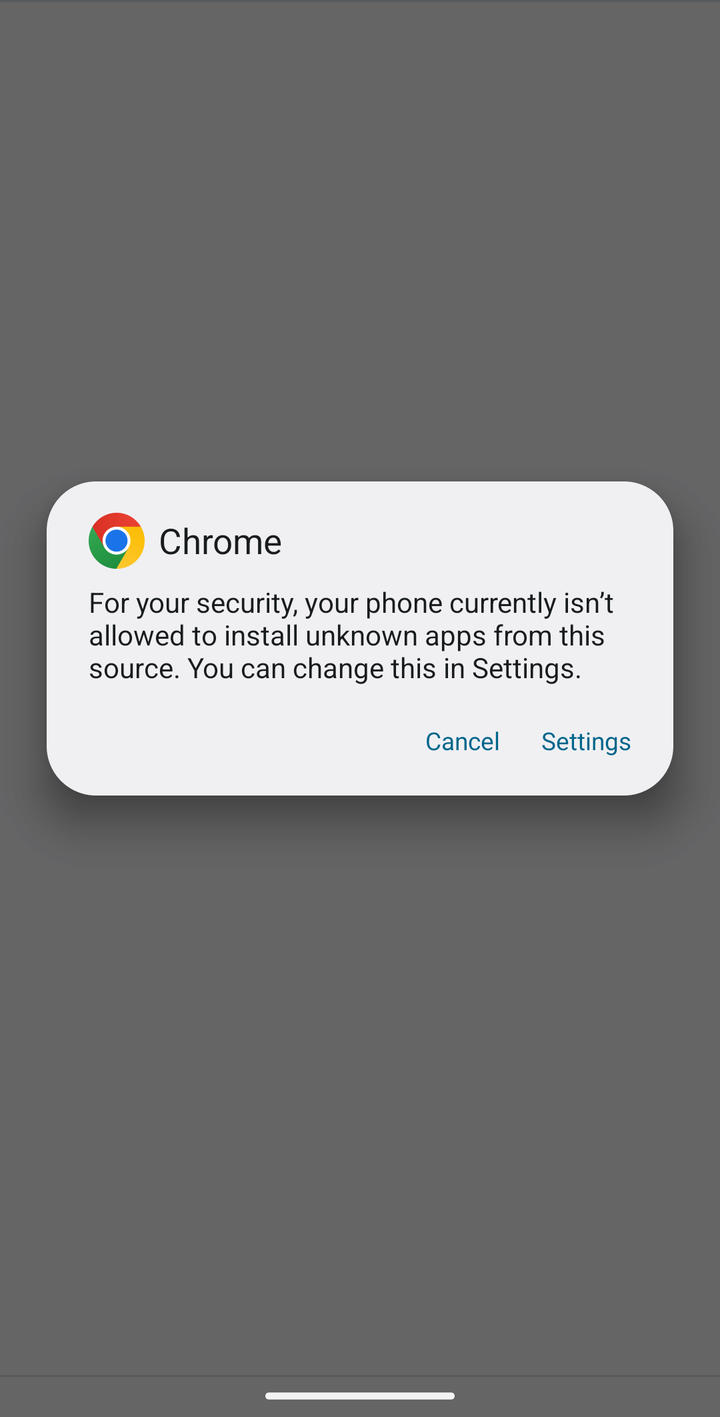
The first time, Android stops and says:
"For your security, your phone currently isn't allowed to install unknown apps from this source. You can change this in Settings."
- Tap Settings.
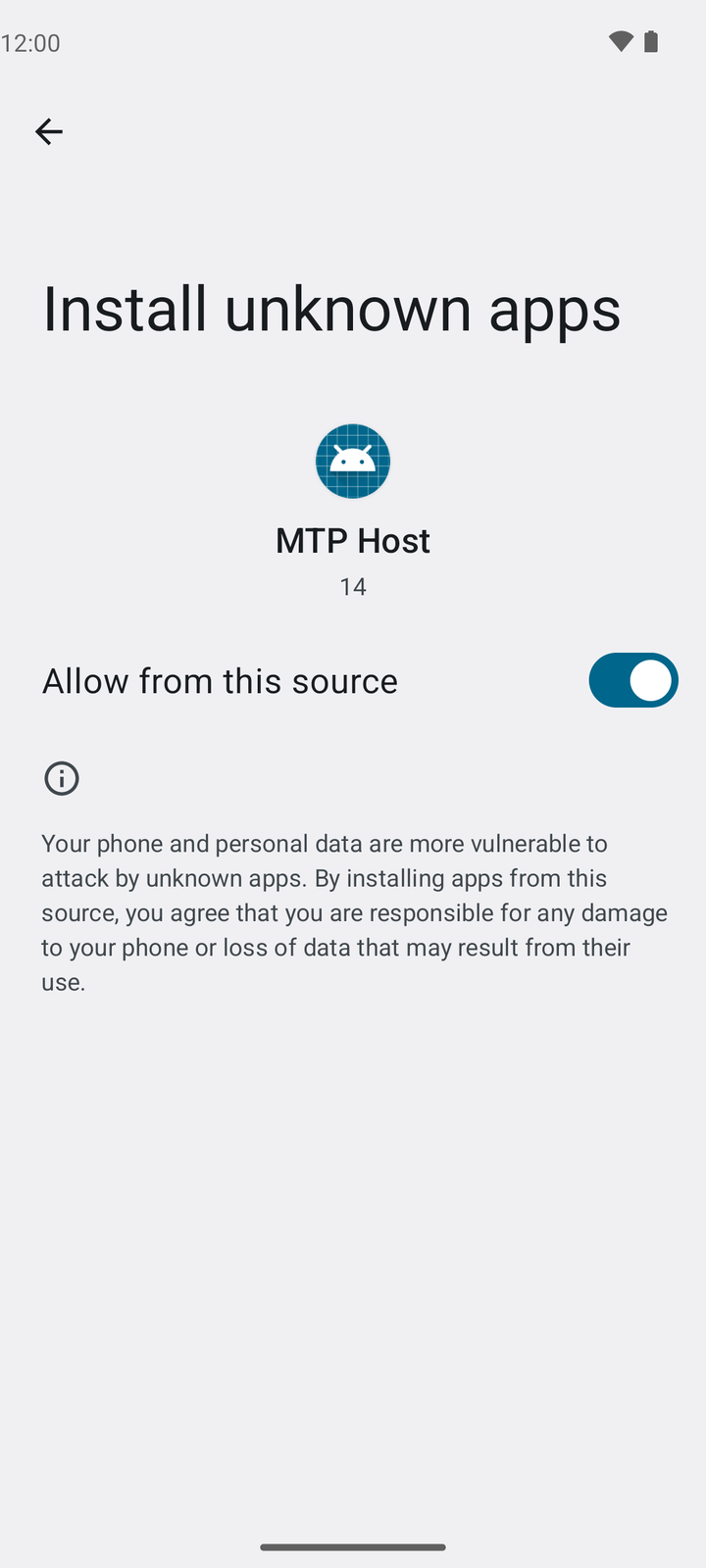
- Turn on Allow from this source.
- The install screen pops up straight away. If it doesn't, tap the back arrow.
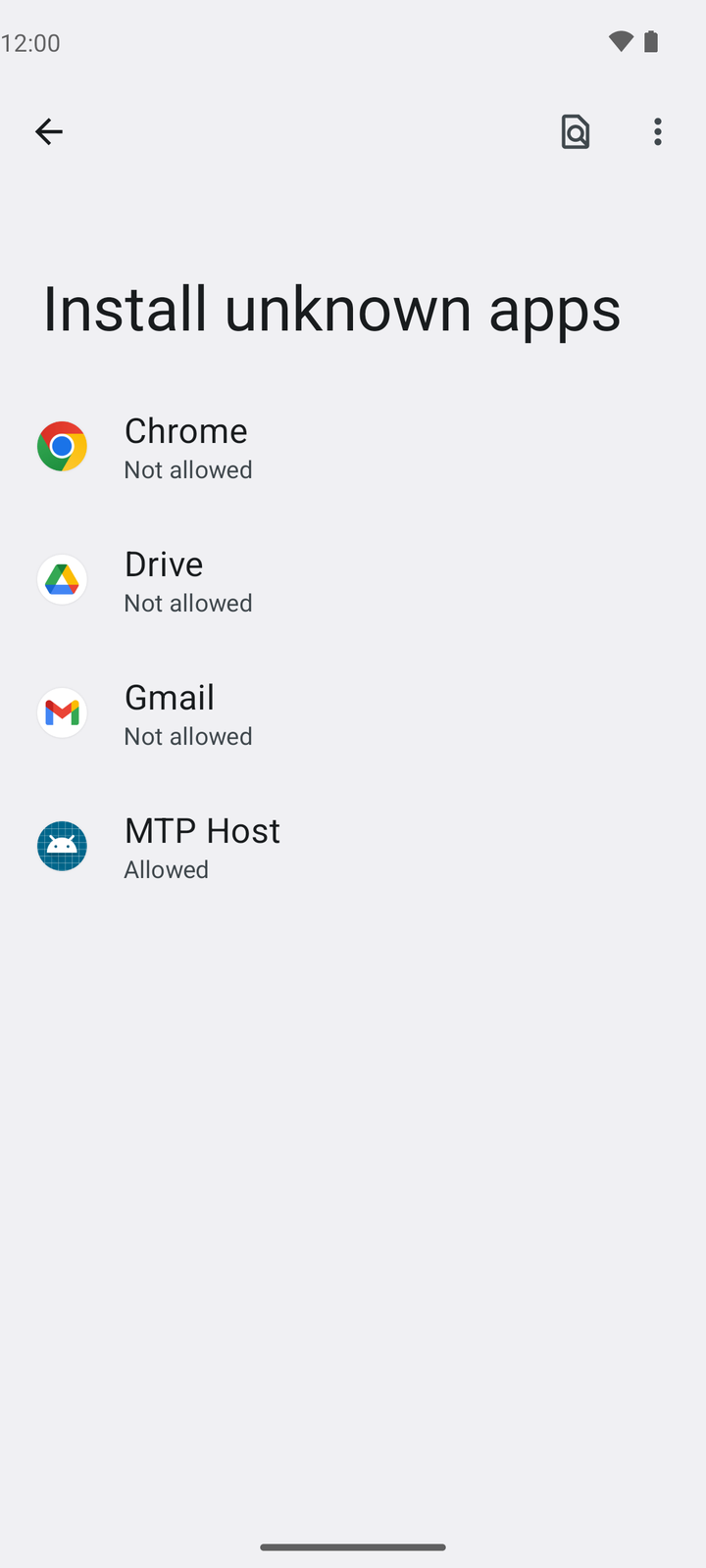
The "source" is the app that opened the file, shown at the top of the message. If you tapped Open in Chrome, it says Chrome. If you opened the file from your Files app, it names that app instead. On Pixel phones the Files app shows up as "MTP Host". That's normal.
Why? Since Android 8, each app has to be allowed to install other apps. You're only giving that one app (usually Chrome) permission, and you can turn it off again straight after (see step 7).
On a Samsung phone and nothing happens, or you see a message about Auto Blocker? See Samsung below.
Tap Install
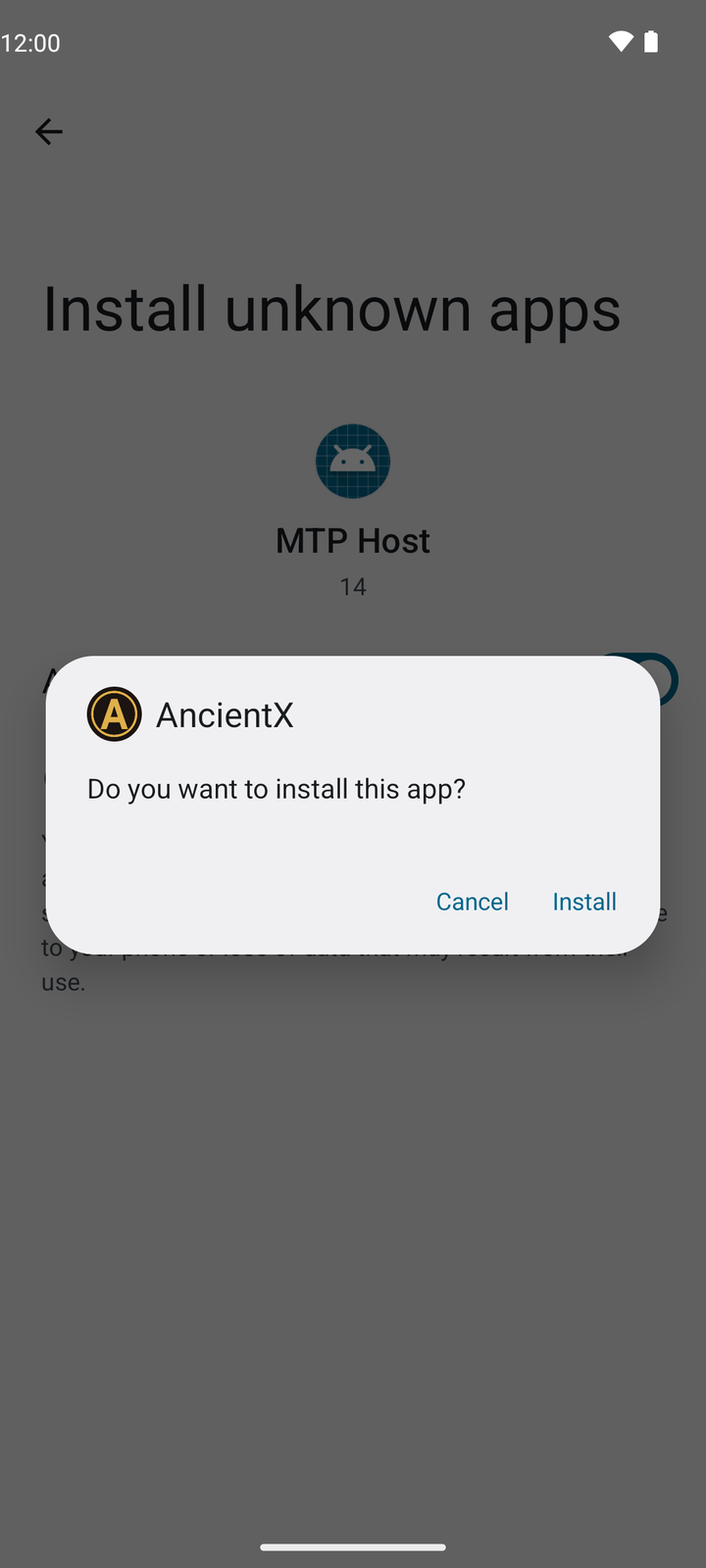
Android shows the AncientX icon and asks "Do you want to install this app?" Tap Install.
Already have an older AncientX beta? It asks "Do you want to update this app?" instead. Tap Update. Your downloaded game data and settings stay. See Updating.
Why? This is Android's normal install screen, the same one every app uses. Nothing is installed until you tap Install.
If Google Play Protect steps in
Play Protect is Google's built-in virus checker. It may not show up at all. If it does, you'll see one of these:
"App scan recommended" or "Send app for a security check"
Tap Scan app (or Send). This is the best choice: Google checks the app and then lets you install it. It takes a few seconds.
"Unsafe app blocked" or "Unknown app"
A brand-new app that few people have installed sometimes gets this caution even when it's clean. If you downloaded AncientX from ancientx.net, tap More details, then Install anyway. Newer phones may then ask for your PIN or fingerprint to confirm. That's normal.
Why? Play Protect knows every Play Store app, but it has never seen a small community beta before. Until enough players install it, it may be cautious.
Please don't turn Play Protect off. AncientX installs fine with it on. If Play Protect blocks the install and there's no "Install anyway" option, stop and tell us on Discord. Don't look for ways around it.
Open and download the game data
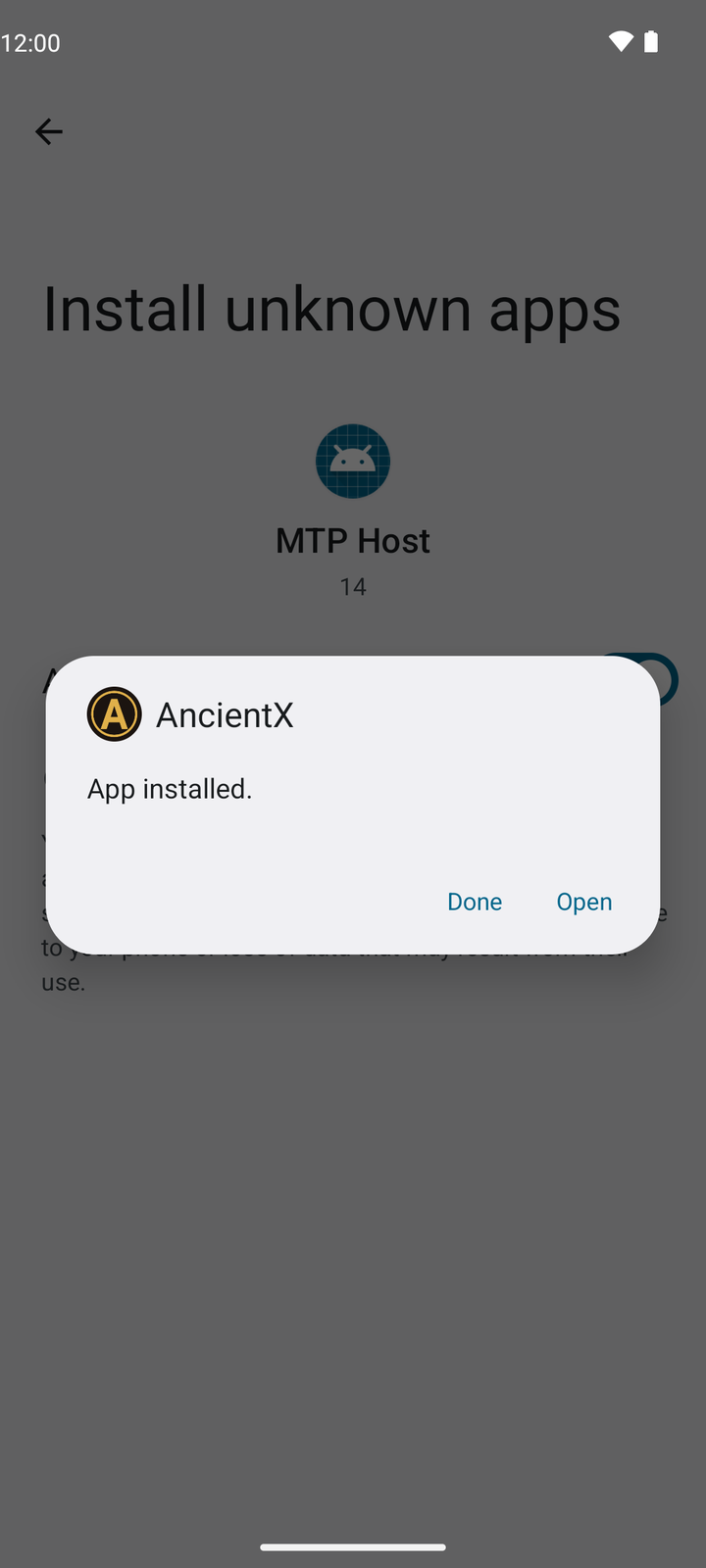
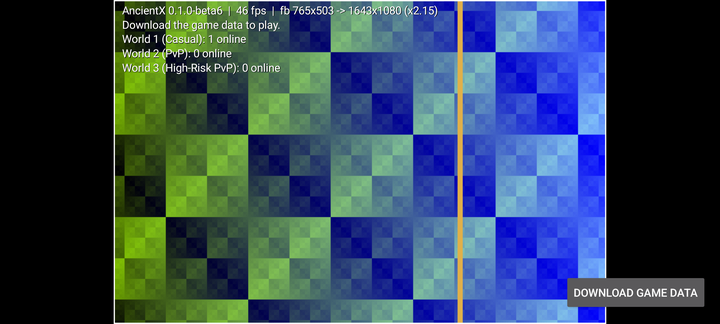
- When Android says App installed, tap Open (or find AncientX on your home screen later).
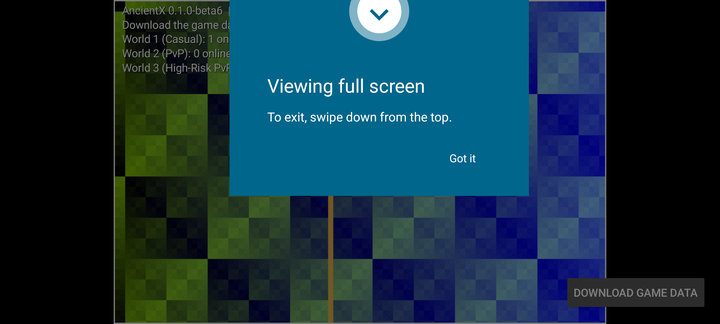
- The first time, Android may say "Viewing full screen. To exit, swipe down from the top." Tap Got it.
- Tap Download game data at the bottom right. It's about 727 MB, so use Wi-Fi.
- Log in with the same AncientX account you used to download the app. No account yet? Register here.
Tidy up (recommended)
Turn the install permission back off. AncientX stays installed and keeps working.
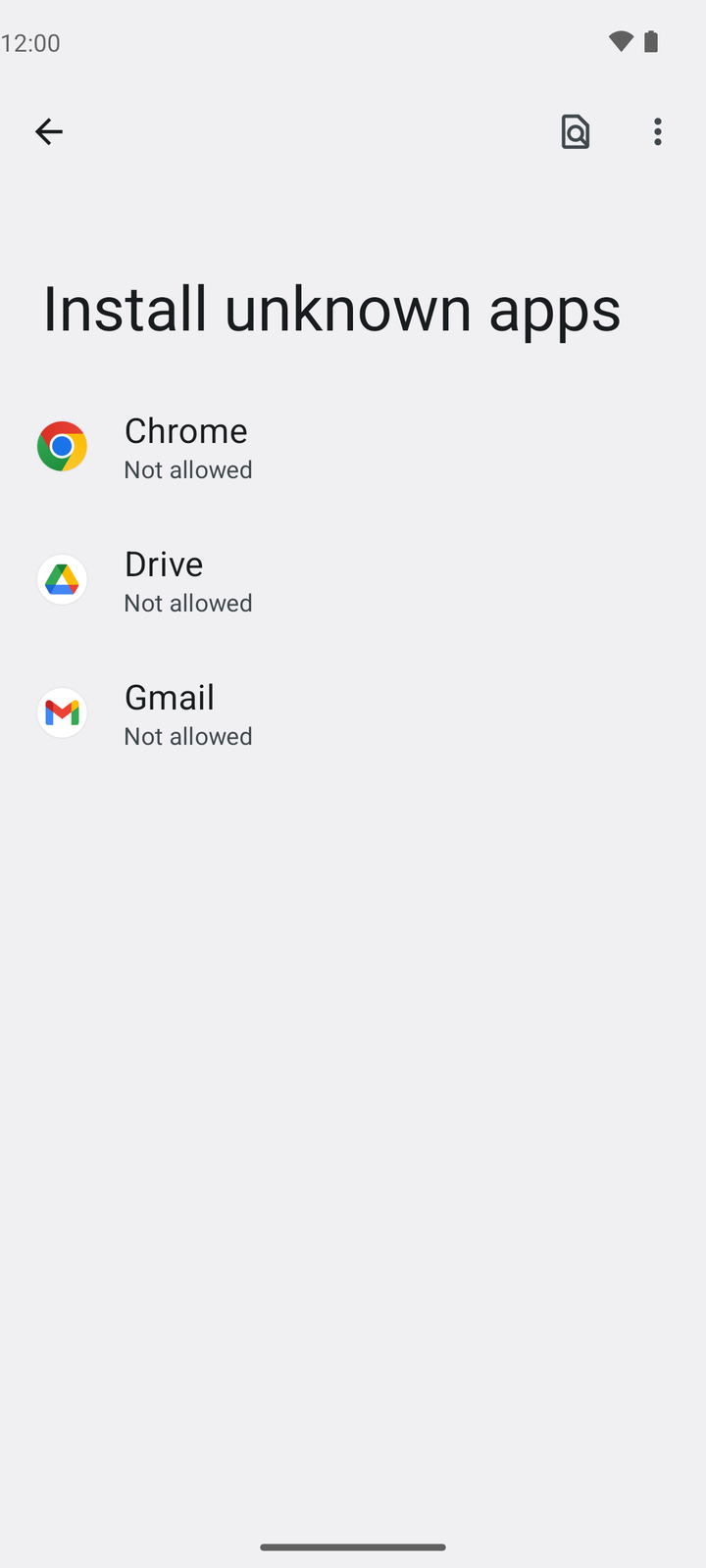
- Open Settings → Apps → Special app access → Install unknown apps. (Special app access is near the bottom of the Apps page, so you may need to scroll.) On Samsung: Settings → Security and privacy → More security settings → Install unknown apps.
- Tap Chrome (or the browser you used) and turn off Allow from this source.
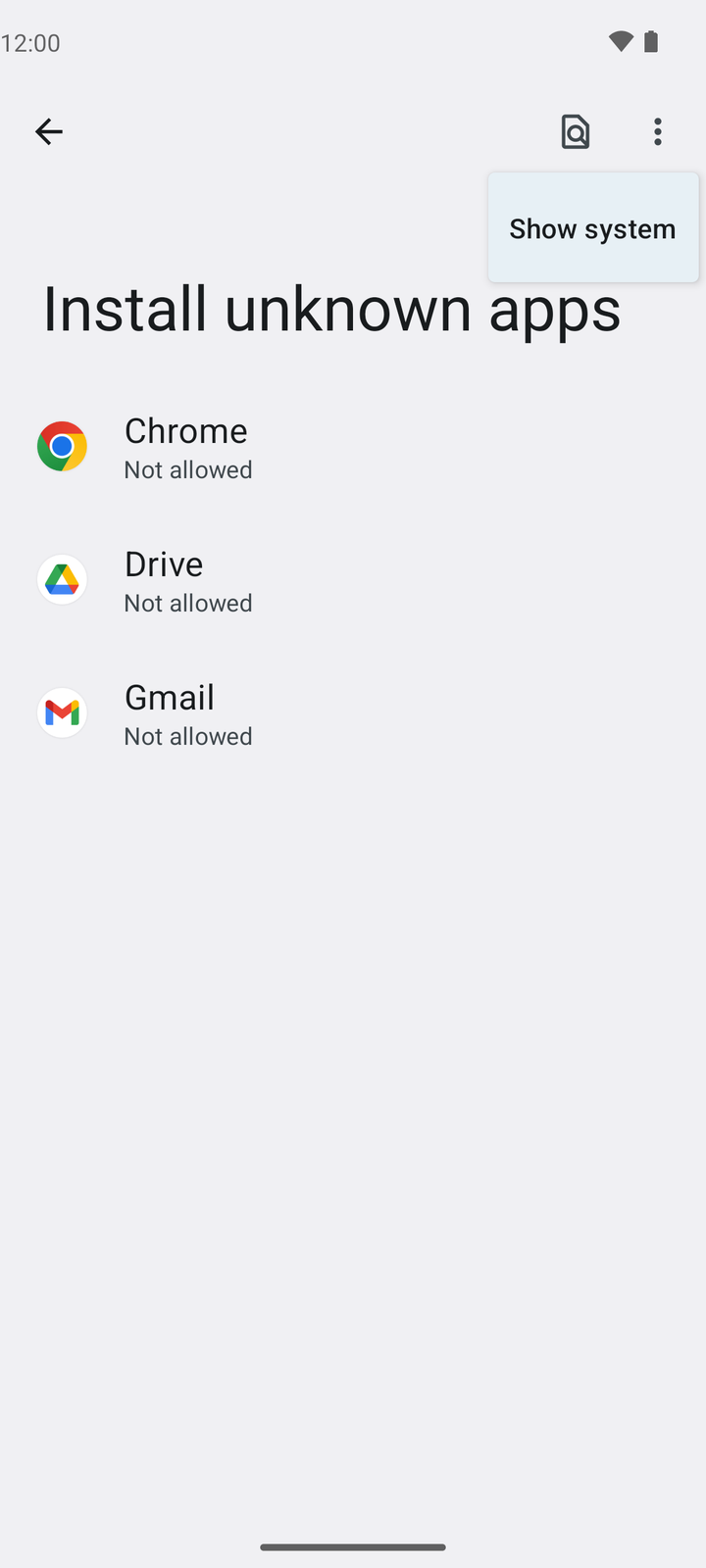
- Opened the app from your Files app instead? It may be hidden from the list. Tap ⋮ at the top right, then Show system. On Pixel phones it appears as MTP Host. Tap it and turn the switch off.
You can also delete the .apk from your Downloads. The game keeps working. Next time you update, turn the switch on again for the install.
Why turn it off? It stops that app from installing anything else without you noticing. It doesn't affect AncientX.
Already have AncientX on your phone?
Download the new app above and open it, the same as the first time. Android shows "Do you want to update this app?": tap Update. You stay logged in and keep your game data.
Don't uninstall the old app first. Uninstalling deletes your login and the 727 MB of game data. If Android says App not installed, ask in Discord instead of uninstalling.
From beta 7 on you only do this once: new versions show Update available inside the game.
Got the old zip download instead?
Older links point to AncientX-Android-0.1.0-beta6.zip. It holds the older beta 6 app plus two read-me files. It works, but the download above is newer and updates itself. It just takes a few more taps:
- Don't tap the zip in Chrome's downloads. Chrome can't open zips and just says Can't open file. Open your Files app, go to Downloads and tap the zip there.
- Files by Google or Samsung My Files: tap Extract and confirm.
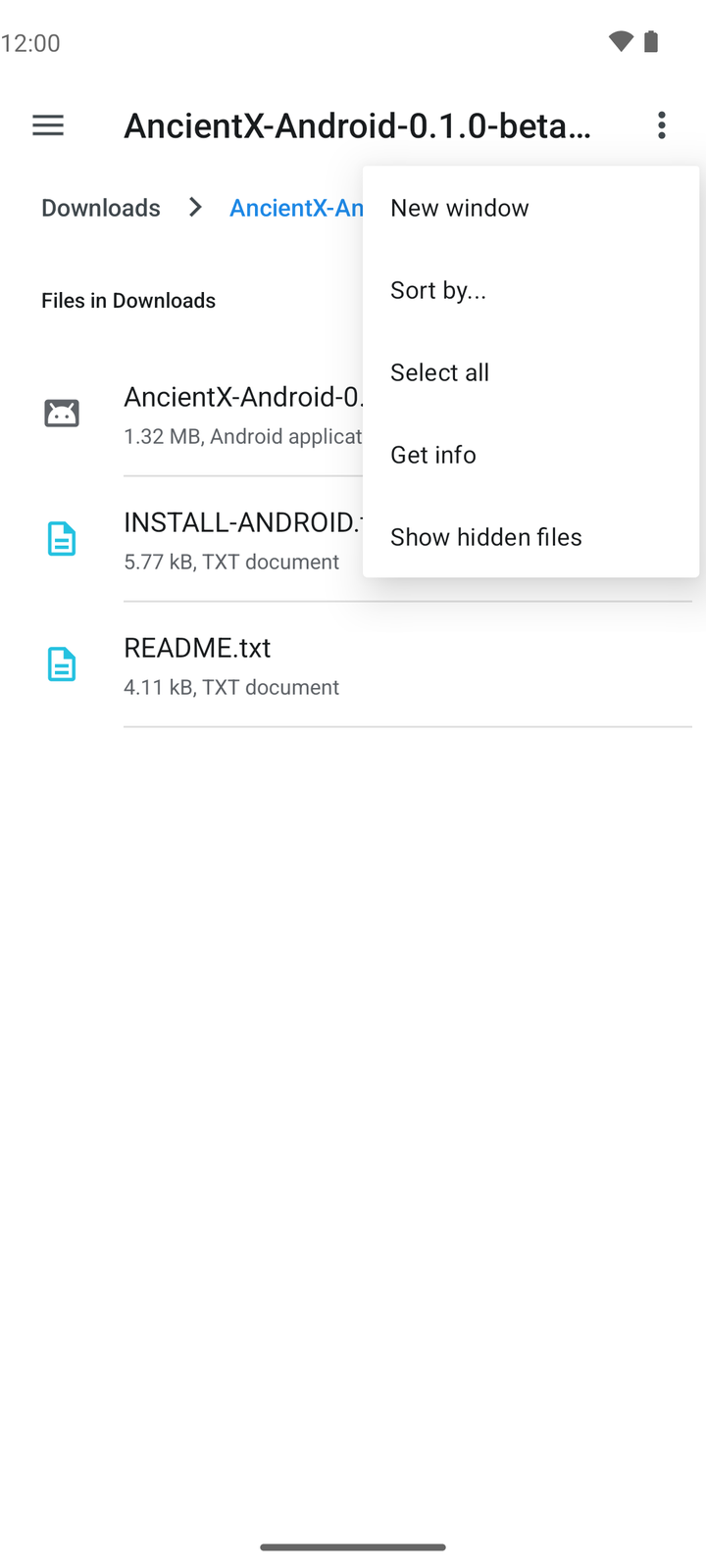
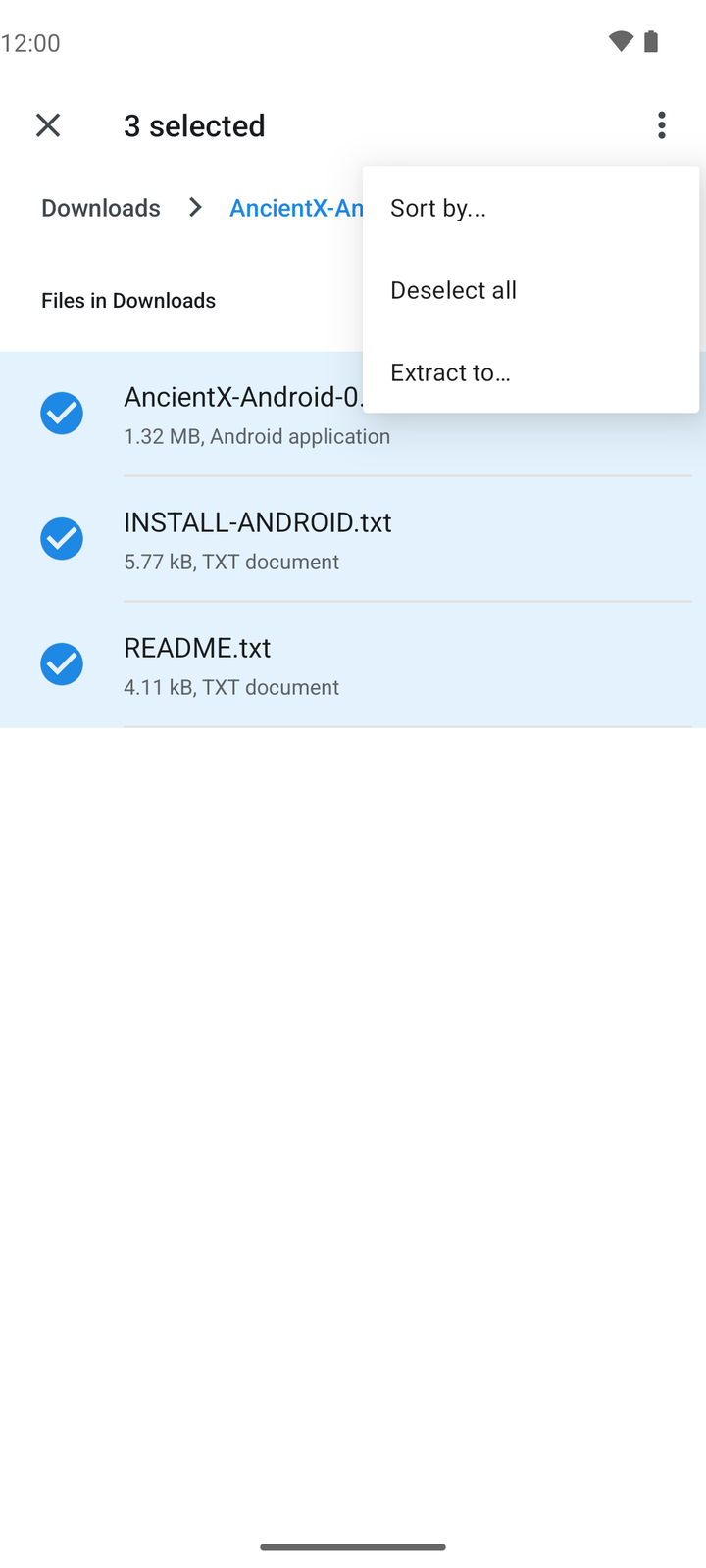
- Pixel's built-in Files app has no Extract button. Inside the zip, tap ⋮ → Select all, then ⋮ → Extract to… → Extract. You end up back inside the zip, so tap Downloads in the path at the top to find the extracted
.apk. - Tap the
.apkand carry on from step 3. The "source" is your Files app (MTP Host on Pixel phones).
Want the zip with the read-me files anyway? Download the zip (members only, same as the app).
Phone-specific extra screens
Some brands add their own safety screens on top of Android's. They're all normal.
Samsung Galaxy (Auto Blocker)
Many newer Galaxy phones have Auto Blocker switched on. It only allows apps from the Galaxy Store and Play Store, so it stops the install with a pop-up.
- Open Settings → Security and privacy → Auto Blocker and turn it off.
- Install AncientX (steps 3 to 5).
- Turn Auto Blocker back on straight after. AncientX keeps working with it on.
Samsung's own advice for an app you trust is to switch Auto Blocker off temporarily and try again. Auto Blocker also stops future updates, so repeat this when you update.
Xiaomi, Redmi, POCO (HyperOS / MIUI)
These phones may run their own security scan before installing, and may show a risk warning, sometimes with a short countdown or more than one confirmation. Wait for the scan to finish, then tap Continue or Install. If it asks you to sign in to a Xiaomi account to install, that's a Xiaomi step, not ours.
OPPO, realme, OnePlus, vivo, Honor
You may see an extra "app security check" or "install anyway" screen, or be asked for your lock-screen PIN. Confirm it and carry on.
Old Android (7 or below)
AncientX needs Android 8 or newer. On older phones you may get "There was a problem parsing the package": the phone is too old for this app. Check Settings → About phone → Android version.
Updating to a new beta
When a new beta comes out, download the new .apk and do the same steps. You don't need to uninstall the old one. Android sees that the new version comes from the same developer and offers Update instead of Install.
- Your downloaded game data (the 727 MB) and your settings are kept, so you won't download it all again.
- If you turned Allow from this source or Samsung's Auto Blocker back on, you'll need to allow it once more for the update. Then switch it back.
- Uninstalling deletes the downloaded game data. Only do it if we ask you to, or as a fix for "App not installed".
Check your download is genuine (optional)
You don't have to do this. AncientX already checks itself: only official builds signed by us can connect to the game, so a modified copy simply won't work.
If you'd like to check anyway, compare the file's SHA-256 checksum with the one published in the Android section of the beta guide. On a PC, put the file in a folder and run Get-FileHash .\AncientX-Android-0.1.0-beta13.apk in PowerShell. On the phone, any checksum app from the Play Store can do it. If the numbers don't match, delete the file, download it again from ancientx.net, and tell us on Discord.
What about Google's new sideloading rules?
You may have read that Google is adding developer verification for apps installed from outside the Play Store. Here's what that means for you right now (October 2026):
- The first phase started on 30 September 2026 in Brazil, Indonesia, Singapore and Thailand, and only covers apps installed from certain app stores. Google says apps installed straight from a website aren't affected yet.
- Google plans to roll verification out worldwide during 2027.
So today you don't need any extra steps, such as developer options or a waiting period, to install AncientX. If that changes, we'll update this page before it affects you.
FAQ
Is this safe?
Yes, as long as you download it from ancientx.net. The warnings come from Android, and every app from outside the Play Store gets them. AncientX needs internet access to connect to the game, and it can send optional notifications (for example when you're idle or low on hitpoints). It doesn't ask for your contacts, messages, photos, microphone or location. It is signed with our own key, and copies signed by anyone else can't connect to the game.
Never install an "AncientX" app that someone sends you in a DM, a file share or another website.
Why does Google warn me?
Google checks apps on the Play Store itself. For anything from elsewhere it can't vouch for the developer, so it asks you to confirm. A small community beta that few people have installed yet is exactly the kind of app it's careful with. The warning means "unknown", not "harmful". Once AncientX is on the Play Store, these screens go away.
I tapped Android (Beta) and got a "Members only" page
You're not logged in on this browser. Log in on the forum (or register a free account), then go back to that page and tap I logged in - download now. See step 1.
It says "App not installed"
Usually one of these:
- "...as package conflicts with an existing package": there's already a copy of AncientX on the phone that was not from ancientx.net (signed by someone else). Uninstall that copy, then install ours.
- You're installing an older beta over a newer one. Android won't go backwards. Download the latest version from ancientx.net.
- Not enough space: see below.
- Secure Folder, work profile or second user: if an old copy is installed there, remove it first.
Still stuck? Restart the phone and try once more, then ask on Discord with your phone model and Android version.
It says "Package appears to be invalid" or "There was a problem parsing the package"
- The download was cut short or damaged. Delete the
.apk, download it again (on Wi-Fi) and try again. - Make sure the download has finished before you tap the file.
- Your phone runs Android 7 or older. AncientX needs Android 8 or newer.
It says "Not enough storage" / "Insufficient storage"
The app itself is tiny, but the first game data download needs about 2 GB free (about 1 GB once it's done). Free up space (old videos, apps you don't use, the Downloads folder), then try again.
Do I need to uninstall the old beta?
No. Install the new one over it and tap Update. Your game data and settings are kept. Uninstalling would delete the 727 MB of game data and you'd have to download it again.
Nothing happens when I tap the .apk
On Samsung, check Auto Blocker. Otherwise, make sure the download has finished, then open your Files app, go to Downloads and tap the .apk there. If you tapped a zip in Chrome's downloads and it said Can't open file, that's the old zip download: see Got the old zip download instead?
Is there an iPhone version?
Yes, an early iPhone and iPad beta. See the iPhone install guide.
Ready? Log in first, then: ⤓ AncientX for Android (Beta)
Requirements, controls and checksums: Android section of the beta guide. Problems? Ask in Discord.